MobiLearn App Installation – Google Play Store (Android)
This document explains the step-by-step process to install and log in to the MobiLearn mobile application from the Google Play Store.
Step-by-Step Instructions
Step 1: Open Google Play Store
Unlock your Android device.
Open the Google Play Store app.
Unlock your Android device.
Open the Google Play Store app.
Step 2: Search for MobiLearn
In the search bar, type “MobiLearn”.
Locate the app from the search results.
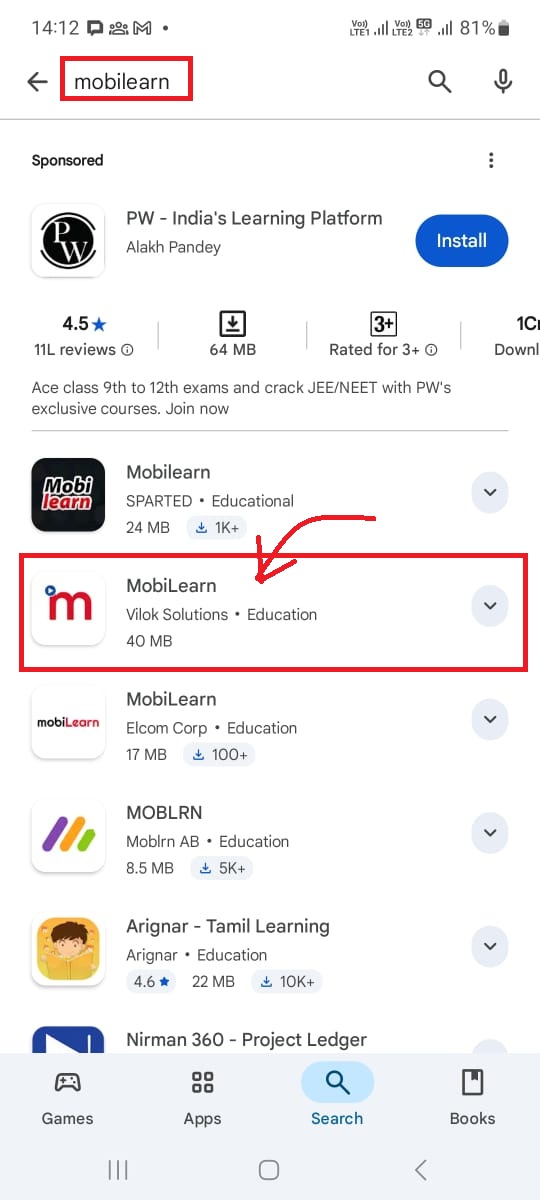
In the search bar, type “MobiLearn”.
Locate the app from the search results.
Step 3: Install the Application
Tap on Install.
The installation process will start automatically.
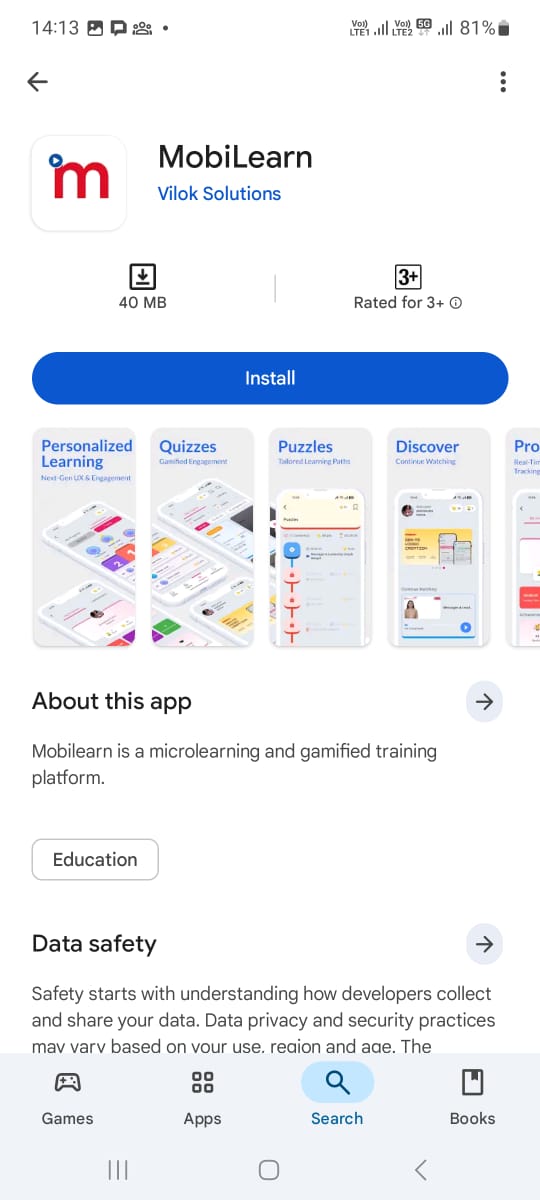
Tap on Install.
The installation process will start automatically.
Step 4: Open the App
After successful installation, tap on Open.
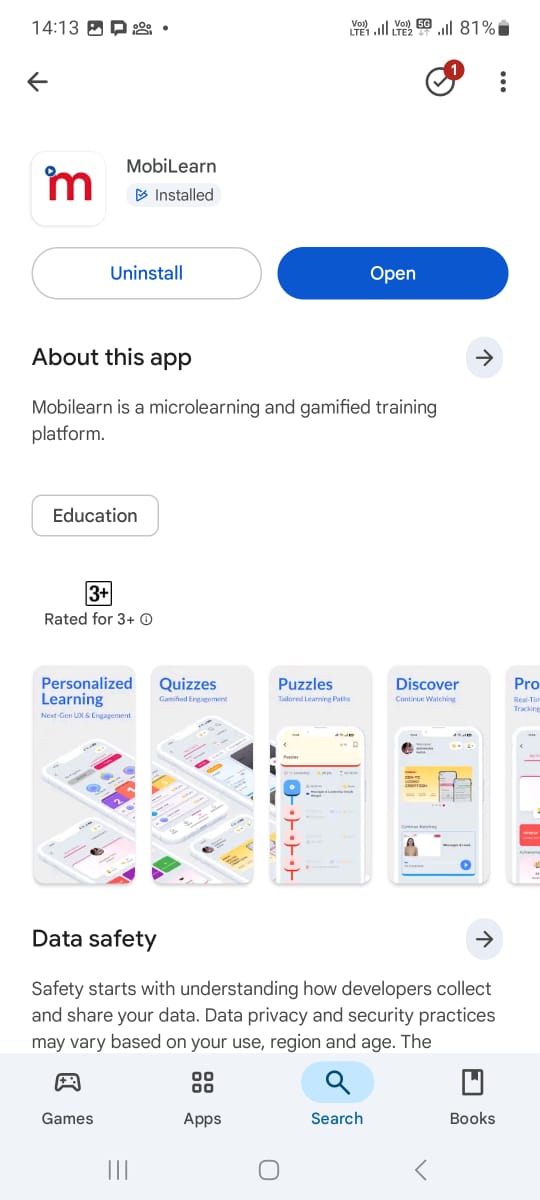
After successful installation, tap on Open.
Step 5: Allow Notifications
When prompted, allow Notifications by tapping Allow.
This is required to receive important updates, alerts, and learning notifications.
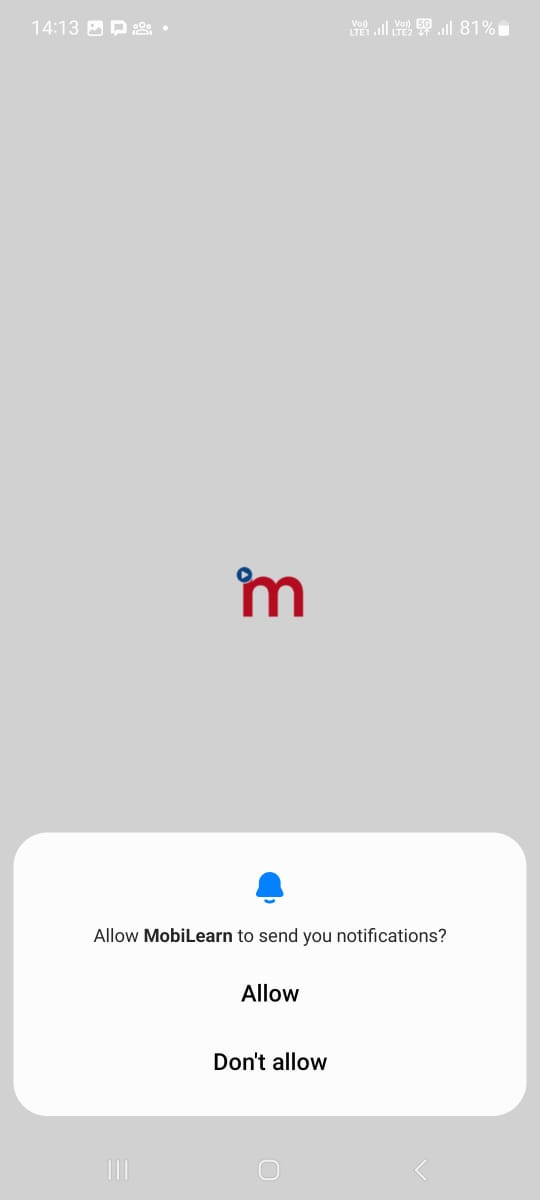
When prompted, allow Notifications by tapping Allow.
This is required to receive important updates, alerts, and learning notifications.
Step 6: Enter Company Code
The app will prompt you to enter a Company Code.
Enter the Company Code provided by your organization.
Note:
If you do not have the Company Code, please contact your Administrator or reach out to MobiLearn Support.
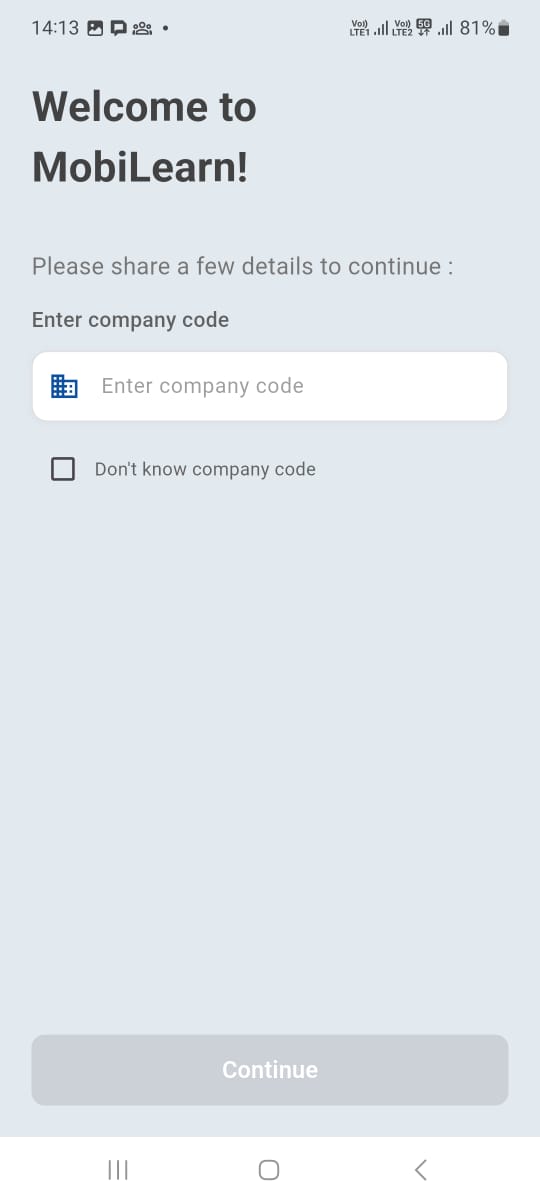
The app will prompt you to enter a Company Code.
Enter the Company Code provided by your organization.
Note:
If you do not have the Company Code, please contact your Administrator or reach out to MobiLearn Support.
Support Contact Details
- Email: support@lokaviveka.com
WhatsApp: +91 89814 02299
WhatsApp: +91 89814 02299
Step 7: Login to MobiLearn
After entering the Company Code, the Login Screen will appear.
Enter your login credentials.
Tap Login to continue.
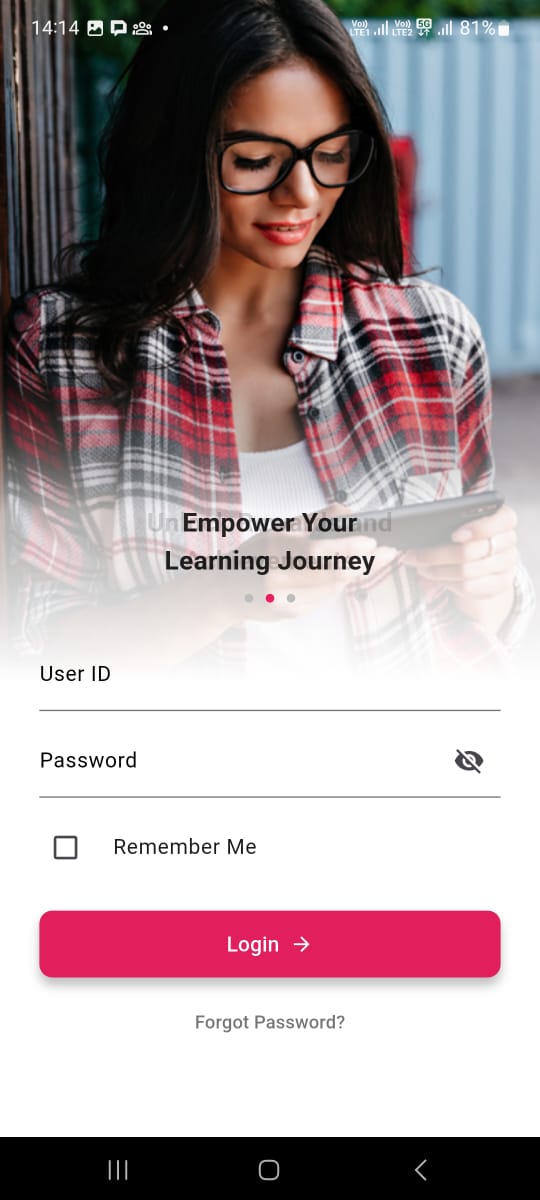
After entering the Company Code, the Login Screen will appear.
Enter your login credentials.
Tap Login to continue.
Result
You have successfully installed and logged in to the MobiLearn App and can now start your learning journey.
Additional Notes
Ensure notifications remain enabled for uninterrupted learning updates.
For any technical issues, contact the support team using the details above.
Ensure notifications remain enabled for uninterrupted learning updates.
For any technical issues, contact the support team using the details above.
Related Articles
How to Install MobiLearn – A Gamified Micro Learning Application on Android Phone
Purpose: This article will guide you through the step-by-step process to download and install the MobiLearn application on any Android smartphone. MobiLearn is a gamified micro-learning platform used by various organizations for employee training and ...📱 MobiLearn (iOS) Installation Guide
This article explains how to install and activate the MobiLearn mobile application on your Apple iPhone using TestFlight. Follow the steps below to complete the installation. 🔹 Step 1: Open Safari Browser Open the Safari browser on your iPhone. 🔹 ...📱 Breeze FSM – Next Generation (iOS) Installation Guide
This article explains how to install and activate the Breeze FSM – Next Generation mobile application on your Apple iPhone using TestFlight. Follow the steps below to complete the installation. Watch on Youtube : ...How to Configure Battery & App Settings for GPS Performance
Battery & Phone Settings for GPS Accuracy To ensure accurate GPS tracking, please check your mobile brand and configure the following battery and app settings accordingly: For Xiaomi, Redmi, Samsung Users: App Permissions: Go to Phone Settings → ...✅ Do's And ❌ Don'ts for BreezeFSM Users
✅ Do's for BreezeFSM Users ? App Usage & Daily Activity: Login Daily: Always log in at the start of your workday to mark your attendance properly. Sync Data Regularly: Ensure your data (Orders, Collections, Visits) is synced frequently. Make a habit ...